
Hytale Server Not Starting: Troubleshooting
Do not reinstall immediately. Capture the console and newest log, classify whether the process never starts, exits during initialization, hangs while loading, or starts but cannot accept connections. Then test Java, command paths, permissions, config syntax, port conflicts, world data, and mods in that order, changing one variable at a time.
Startup failures look similar from the outside but have different causes. A window that closes instantly is not the same as a server that finishes startup but cannot be reached.
The fastest path is a controlled comparison against a known-good baseline. Preserve the original folder and logs before changing anything.
1. Classify the failure before fixing it
Run the launch command in an existing terminal so the message remains visible. Note whether Java itself cannot be found, the process exits with an exception, loading stops at one component, or the server reports ready but clients fail.
Write the last successful stage and exact time. This decides whether to focus on runtime, files, content, or networking.
2. Preserve evidence
Copy the newest log and the exact console command. Record server version, Java version, operating system, available disk space, recent updates, and the last change that preceded the failure.
Do not edit the only copy of config.json or delete the world while experimenting. Work from a duplicate when possible.
3. Verify Java and the launch command
The official server manual currently requires Java 25. Run the version check under the same account and environment used by the service or panel. Then inspect quoting around paths, file names, working directory, and JVM options.
If double-clicking closes the window, execute the script from a terminal. A missing file, invalid flag, or wrong working directory usually becomes obvious.
4. Check paths, permissions, and storage
Confirm that the account can read the server files and write to worlds, logs, cache, and backup directories. Antivirus or controlled-folder protection can block writes without an obvious game-specific message.
Check free disk space and path length. Avoid synchronizing the live server folder through consumer cloud drives, which can lock or partially sync active files.
5. Validate configuration syntax and values
A malformed JSON file, unsupported property, wrong type, or invalid path can stop initialization. Import the configuration into the HyTools assistant and review warnings, but preserve unknown properties and compare against the current official manual.
If the failure began after one edit, revert only that edit first. Replacing the entire config hides which value was responsible.
6. Separate startup from connection problems
A server that reaches ready state but cannot be joined may have a firewall, forwarding, bind address, or port conflict rather than a startup failure. Check whether another process already uses the configured UDP port.
Test locally before changing router rules. Use the Port and Firewall Assistant only after the process is confirmed active.
7. Test the world without destroying it
If loading stops while opening one world, copy the full world folder, then test with a new temporary world or a known-good backup. Never overwrite the only copy.
A new world that loads successfully narrows the issue to world data, world-specific configuration, or content referenced by that save. Restore from backup rather than manually deleting random files.
8. Isolate mods with a controlled method
If the clean server starts, move third-party mods out of the active folder and add them back in halves or small batches. This binary-search approach finds a conflicting group faster than testing one by one when the list is large.
Check dependency versions and whether a mod supports the current server build. Keep the original mod list and configuration so you can reproduce the exact failing set.
9. Escalate with a complete report
When the cause remains unclear, provide the smallest failing setup, exact command, relevant versions, recent changes, and logs. State whether a clean server, new world, or no-mod test succeeds.
The HyTools Log Analyzer can turn the raw file into a focused excerpt, but attach the original through the trusted support process when requested.
Use these HyTools utilities
Continue with the browser tools referenced in this guide. No account or installation is required.
Log Analyzer
Analyze Hytale server logs in your browser, highlight errors and warnings, navigate stack traces and generate a cleaner support report.
Server Configuration Assistant
Generate and validate Hytale config.json, JVM options and launch files. Import an existing config and download a complete local setup package.
Port & Firewall Helper
Generate UDP 5520 firewall commands and follow Hytale port forwarding guidance for Windows, Linux, home routers, VPS providers, and local networks.
Frequently asked questions
Why does the server window close immediately?
The launch command may be unable to find Java or a required file, or Java may exit on an invalid option or startup exception. Run the same command from an open terminal to keep the message visible.
Should I delete the world to test?
No. Copy the world first and test a new temporary world or a backup. Deleting the only copy destroys evidence and may cause irreversible loss.
How do I find a broken mod?
Confirm the clean server starts, then reintroduce mods in controlled batches while keeping versions and configs recorded. Inspect the first related error in the log.
Sources and further reading
Technical facts are checked against official Hytale material when available. Product behavior can change, so verify critical production changes in the current official documentation.
- Official Hytale Server Manual
- Official guide: How to Find Your Hytale Logs
- Official Hytale media gallery
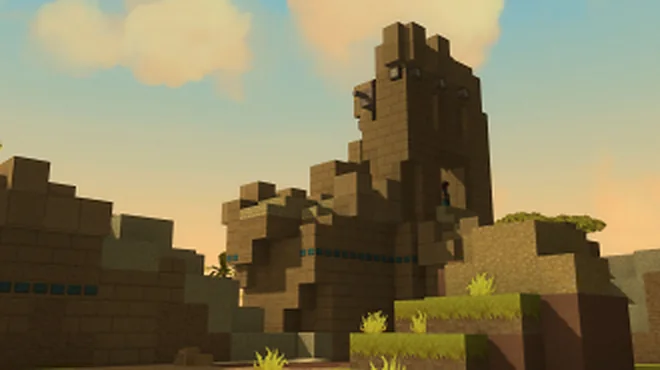
Article image: official Hytale media, © Hypixel Studios. Hytale Media
Where to Find Hytale Logs and How to Analyze Them
Turn a long log into evidence: locate the right file, preserve context, identify the first meaningful failure, and share only what support needs.
How to Set Up a Hytale Server: Files, Java, Memory, and First Launch
A practical path from an empty folder to a maintainable Hytale server, with the decisions that matter before players connect.
Hytale Server Port Forwarding and Firewall Guide
A safe, layer-by-layer method to make a local Hytale server reachable without disabling protection or exposing unnecessary services.