
How to Set Up a Hytale Server: Complete Guide
Use a clean server folder, install the Java version required by the current official manual, generate a reviewed config.json and launch script, start locally first, confirm the world loads without errors, and only then open network access. Keep backups and update notes from day one.
Running a server is not only a matter of launching a JAR file. A stable setup separates software, worlds, logs, backups, and configuration so that an update or a broken mod does not turn into a complete rebuild.
This guide follows the current official server manual and focuses on a repeatable setup. Exact commands can change as Hytale evolves, so compare production changes with the official documentation before applying them.
1. Decide what the server must support
Write down the intended player count, whether the server is private or public, the operating system, the world type, and whether you will use mods. These choices affect memory, network exposure, backup frequency, and how cautiously you should update.
For a first test, keep the environment intentionally small. A clean baseline makes it much easier to identify whether a later problem came from the server itself, a configuration change, or an added mod.
- Choose a permanent server folder rather than Downloads or the desktop.
- Reserve a separate location for backups.
- Record the server version, Java version, installed mods, and important config changes.
- Use a non-administrator operating-system account whenever practical.
2. Install and verify Java
The official manual currently requires Java 25 for the dedicated server. Install a compatible 64-bit runtime and verify the command available to the account that will run the server.
Do not assume the newest Java installation is the one used by your launch script. A service, terminal, or control panel can point to a different executable. Save the result of the version check in your setup notes.
java -version3. Create a predictable folder structure
Keep the executable files and generated data easy to distinguish. A simple structure helps when you need to restore only a world, compare configuration files, or collect logs for support.
Do not store live backups inside the same folder that you routinely delete or replace during updates. At least one recent backup should exist outside the active server directory.
- server/ — active server files and launch scripts
- server/config/ — reviewed configuration files when supported by your layout
- server/backups/ — short-term local copies
- backups-offsite/ — a second copy on another disk or provider
- notes/ — update log, mod list, and recovery steps
4. Generate and review configuration files
Use the HyTools Server Configuration Assistant to prepare config.json, JVM options, and launch files for your operating system. Import an existing config when migrating so unknown properties can be preserved rather than silently discarded.
Treat generated files as a starting point, not an excuse to skip review. Confirm names, paths, ports, memory values, update behavior, and backup settings before the first launch. Avoid copying random flags from unrelated Java games.
5. Give the server enough memory without starving the machine
The official manual lists at least 4 GB of RAM for the server. The useful allocation depends on the operating system, active worlds, players, mods, and other services running on the same machine.
Leave memory for the operating system and monitoring tools. Allocating every available gigabyte to Java can cause paging and make the entire machine less stable. Increase memory after observing real usage instead of guessing an extreme value.
6. Perform a local first launch
Start the server before exposing it to the internet. Watch the console, wait for the world to finish loading, connect from the same machine or local network, and confirm that stopping the server produces a clean shutdown.
After the first successful run, inspect the generated folders and logs. Save a backup of this known-good state. It becomes the fastest comparison point if a later update or mod causes trouble.
Run the launch script in a visible terminal.
Wait for the server to report that startup is complete.
Join locally and perform a basic movement and interaction test.
Stop through the supported server command, not by killing the process.
Copy the clean configuration and world to your backup location.
7. Open access only after the local test passes
For public access, configure the host firewall and router or provider rules for the server's UDP port. The official manual uses UDP 5520 as the default. Avoid exposing unrelated ports and do not disable the entire firewall just to make a test work.
Use the HyTools Ports and Firewall Assistant to build a platform-specific checklist. Test from a device outside your home network because a successful local connection does not prove that internet routing is correct.
8. Prepare for updates, backups, and recovery
A server becomes reliable through routine operations. Back up before updates, change one major thing at a time, and keep a short changelog. Verify that backups can actually be restored; an untested archive is only a hope.
Before inviting a larger audience, use the Launch Checklist to review permissions, moderation, announcements, backups, network access, and rollback steps.
Use these HyTools utilities
Continue with the browser tools referenced in this guide. No account or installation is required.
Server Configuration Assistant
Generate and validate Hytale config.json, JVM options and launch files. Import an existing config and download a complete local setup package.
Port & Firewall Helper
Generate UDP 5520 firewall commands and follow Hytale port forwarding guidance for Windows, Linux, home routers, VPS providers, and local networks.
Launch Checklist
Plan a Hytale server launch with dynamic tasks, owners, notes, blockers, readiness scoring, runbooks and exportable staff reports.
MOTD Generator
Create a clear Hytale server MOTD, check readability, import an existing config.json and copy or download the correct native text value.
Frequently asked questions
Can I host a Hytale server on my own PC?
Yes for testing or a small private group, provided the machine, connection, and network rules are suitable. Public hosting also requires attention to uptime, security, backups, and whether your internet provider allows inbound connections.
How much RAM should I allocate?
The official manual lists at least 4 GB for the server. Start with a reasonable allocation that leaves room for the operating system, then measure usage under real load before increasing it.
Should I install mods before the first launch?
A clean first launch is safer. Confirm the base server works, back it up, and then add mods in small groups so failures can be traced.
Sources and further reading
Technical facts are checked against official Hytale material when available. Product behavior can change, so verify critical production changes in the current official documentation.
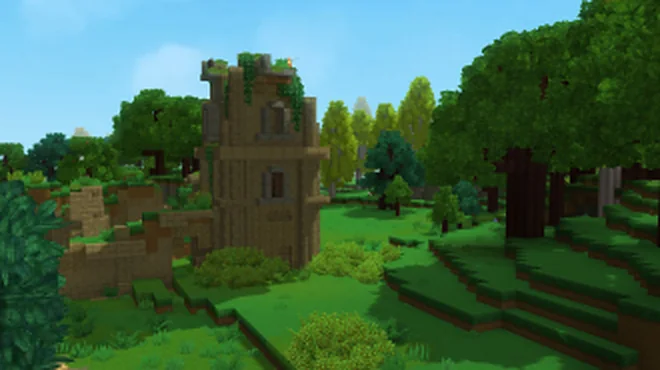
Article image: official Hytale media, © Hypixel Studios. Hytale Media
Hytale Server Port Forwarding and Firewall Guide
A safe, layer-by-layer method to make a local Hytale server reachable without disabling protection or exposing unnecessary services.
Where to Find Hytale Logs and How to Analyze Them
Turn a long log into evidence: locate the right file, preserve context, identify the first meaningful failure, and share only what support needs.

Hytale Server Not Starting? A Systematic Troubleshooting Guide
A decision tree for startup failures that avoids random reinstalls and preserves the evidence needed to find the real cause.